


Why Perform Trades On MetaTrader 4 On PC?
The primary reason professional traders gravitate toward the PC version of the mt4 trading platform is its superior processing power. Desktop hardware allows for the simultaneous management of multiple charts, the running of complex automated strategies (Expert Advisors), and the use of advanced custom indicators without the lag often associated with web or mobile versions.
Furthermore, the Windows interface allows for a highly personalized workspace. You can drag and drop windows across multiple monitors, set up complex hotkeys, and access a deeper level of historical data, which is essential for backtesting and technical analysis. For those serious about their market performance, the desktop version is not just an option, but a necessity.
Technical Requirements For MT4 On Windows PC
Before you begin your metatrader 4 download, it is important to ensure your hardware is ready to handle the platform’s analytical demands. While the software is designed to be lightweight, running multiple charts and indicators requires specific resources to maintain stability.
Download & Installation Guide: Getting Started with MetaTrader 4 (MT4)
Step 1: Sign-up and create your TMGM Account
Complete the sign-up process by providing a few basic details about yourself and let us get to know you better. You will also need to complete a quick verification to confirm your identity. Don’t worry, it’s fast and secure, and should you encounter any issues, please reach our friendly customer support team to assist you.
When signing up, consider how much leverage and margin you want as well, as you will need to set your initial leverage ratio here.
Sign Up and Get Started or Log-in to your existing TMGM account
Step 2: Access the TMGM Portal on your device and download MetaTrader 4 (MT4)
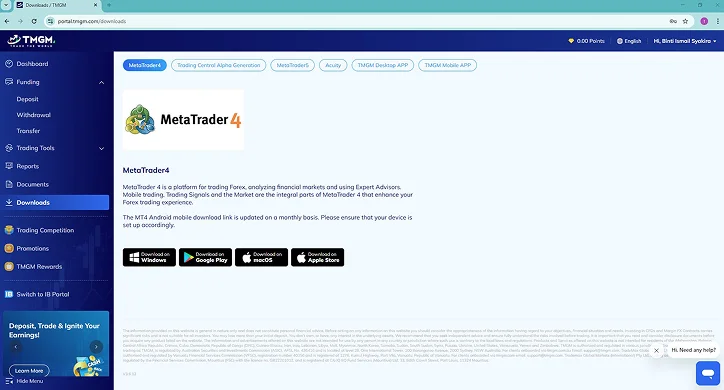
In the Downloads section, select and download the relevant client for your device.
The TMGM MetaTrader 4 (MT4) client is available for Windows Devices, macOS, Android Devices, as well as on the Apple Store. In this guide, we will be focusing on the Windows version of the MT4 client.
Step 3: Locate and Install the TMGM MetaTrader 4 Client
Check your downloads folder for the executable file (.exe), and double click on it to begin the installation process. Follow along with the prompts, and you will have successfully installed MT4 on your Desktop system.
Step 4: Successfully Connecting To The TMGM Trading Server
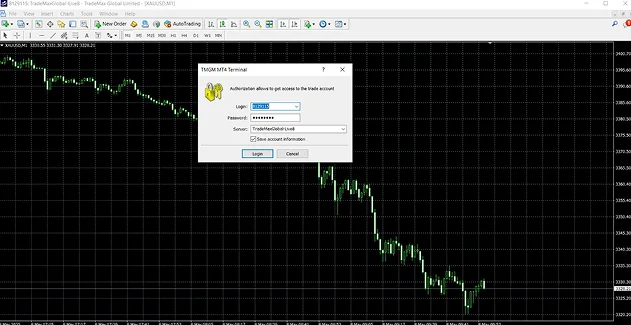
The most critical step after installation is ensuring your platform is correctly synchronized with our live market feed. When you launch the software for the first time, a login window will appear. You must enter the credentials provided in your TMGM client portal.
Pay close attention to the ‘Server’ dropdown menu. For a live account, you must select the TMGM-Live server, whereas a demo account requires the TMGM-Demo server. If you select the wrong server, your credentials will not be recognized, and you will see an ‘Invalid Account’ error in the bottom right corner of the platform. A successful connection is indicated by green and blue bars showing your current data speed.
Navigate & Master The MetaTrader 4 (MT4) Interface
Now that you’ve successfully installed the TMGM MT4 client on your system, you will need to log-in to your account to enable its functions. Familiarise yourself with the MT4 interface and learn about useful features and customisations to elevate your trading experience by following these easy steps.
Step 1: Sign-in to your Trading Account on MT4
Navigate to the File button and select Login to Trade Account. Enter your Login Details – the password should be the same one that was used for the TMGM online portal. You can then select whether to login to a live server, or to the demo server.
Step 2: Get Familiar with the MT4 Interface
The Windows version of meta trader 4 is divided into four main areas, designed to give you total control over your trading environment:
1. Market Watch (Control + M):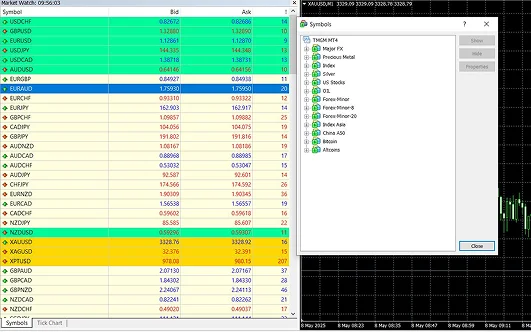
The MT4 Market Watch window shows a list of all the available financial instruments on MT4. It also displays the current bid and ask prices. You can right-click within this window to place orders, open charts, or view the specific details of any instrument.
If you’re not sure about what the symbols represent, you can also use the Symbols window (Control + U) for the full list of symbols and names for the instruments on MT4.
2. Navigator (Control + N):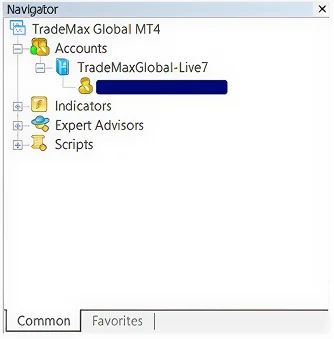
The Navigator window allows you to quickly navigate between multiple accounts (if any), and lists the available indicators, scripts, and expert advisors for you to use. One great tip is to go through the indicators and trend tools which you will be using often, and to set them as Favorites. You can then quickly access your frequently used tools here in the navigator window too, under the Favorites tab at the bottom. For a deeper tour of what’s available, see MT4 indicators and add-ons.
3. Chart Window(s)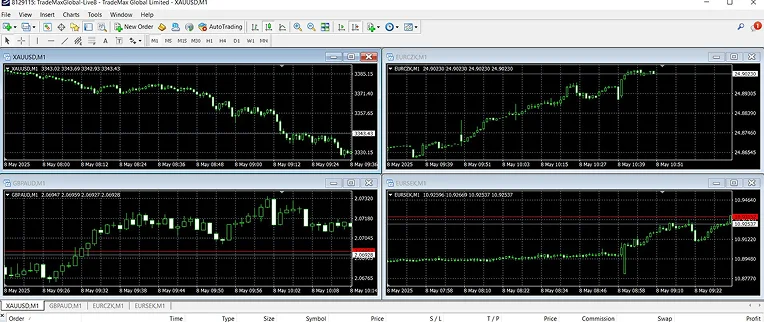
The chart window is where you will be conducting most of your analysis and studying trends. It shows the real-time price charts of your selected financial instruments and can be set to various time frames, depending on your trading strategy. You can choose to focus on one symbol to study, or even multiple symbols at a time, allowing you to keep watch on price trends and correlating assets. Furthermore, you can add any indicators to each window by simply dragging and dropping it from the Navigator window into the Chart window.
4. Terminal (Control + T)
The terminal window can be found at the bottom of the interface, and is useful to view your open positions, trading history, alerts, and other market news at a glance.
5. Strategy Tester (Control + R)
For traders looking to utilise trading robots and expert advisors (EAs), the strategy tester is a key function which tests algorithms by performing virtual transactions to evaluate how the EA would have traded in the past, simulating real trading behaviour and outcomes. Once complete, the tester will provide a full report providing both graphical and quantitative data of the results.
Windows Power-User Features
Many traders ask why they should bother with a metatrader 4 download when they have the app on their phone. The answer lies in the ‘Power-User’ features. The Windows version supports One-Click Trading, which allows you to enter the market at lightning speed, a feature that is vital for scalpers.
Additionally, the desktop version is the only environment where you can fully utilize automated trading. Expert Advisors (EAs) require the stable, always-on environment of a PC to execute trades based on pre-set algorithms. While you can monitor your trades on mobile, the heavy lifting of strategy execution and complex charting is best left to the Windows platform.
Making Trades with MetaTrader 4
Placing a trade on the mt4 trading platform is designed to be intuitive. You can right-click any chart to open a ‘New Order’ window, where you can choose between Market Execution (buying or selling at the current price) and Pending Orders (setting a price for the trade to trigger automatically in the future).
One of the greatest benefits of the Windows version is the ability to set ‘Trailing Stops’ directly from your Terminal. This allows your stop-loss level to automatically move in your favor as the price progresses, locking in profits while you are away from the screen.
Now that you’re familiar, let’s get started dive deep on how to place trades and monitor your positions.
Step 1: Choose the instrument you would like to trade from the Market Watch window.
Step 2: Right Click on the instrument and select New Order (F9). You can also go to ‘Tools’ and select ‘New Order’.
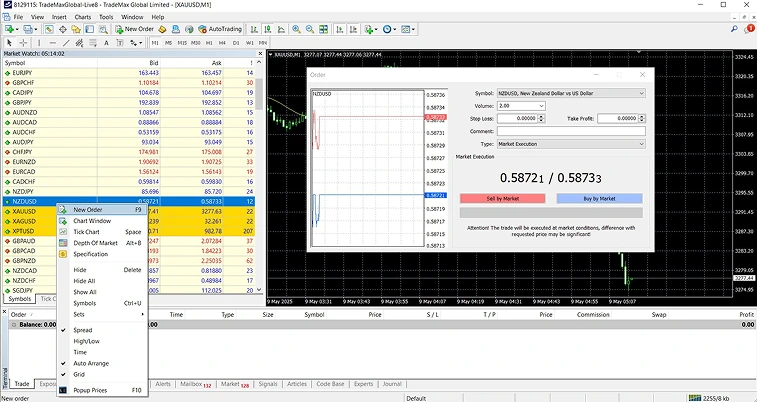
Step 3: Set the parameters of your trade
The Volume is the number of contracts that you’d like to trade.
The Stop Loss is a set amount to automatically close the position once the price reaches that level. For long positions, the stop loss is typically below the current market price, and above the current market price for short positions. You can leave it at 0.00 if you do not intend to use a stop loss order.
The Take Profit is a set limit to automatically lock-in profits for the position once the price reaches that level. For long positions, the take profit is typically above the current market price, and below the current market price for short positions. You can leave it at 0.00 if you do not intend to use a take profit order.
The Comment is a section for you to leave any notes, trading comments, or advanced trade-management.
The Type consists of two methods: Market Execution (if you want to immediately place the trade when you select ‘buy’ or ‘sell’) and Pending Order (if you want to choose the price at which your trade opens).
Step 4: Carry out the trade
Market Execution
If you set the trading type to Market Execution, the trade can then be carried out by selecting the ‘Sell by Market’ or ‘Buy by Market’ options.
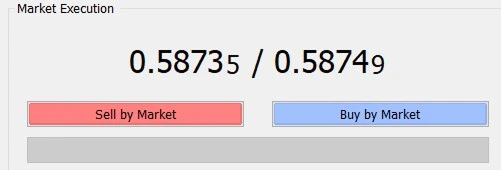
‘Buy’, to take a long position if you expect that the instrument will rise in value.
‘Sell’ to take a short position if you expect that it will fall in price.
The actual price may fluctuate and vary compared to what is shown, especially if there are large movements or volatility when you are placing the order. If you would like more control over the actual price, you can choose the other option to place your trade.
Pending Order
This type of order grants traders more finesse and control in opening the position. Pending orders can be executed through limit orders or stop orders at a specified price.
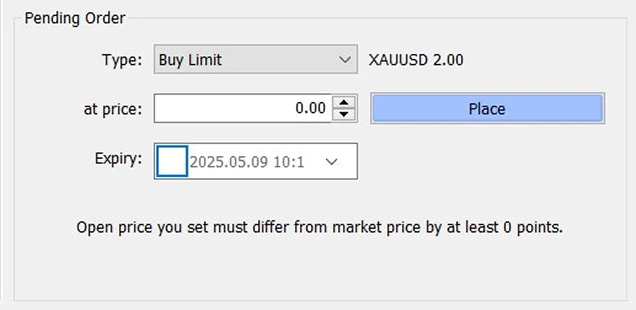
Limit: A limit order will only be fulfilled when the price reaches the specified price, or better.
Stop: A stop order triggers at the specified price, and will then be filled at the prevailing market price. This means that the order could be carried out at a significantly different price than the actual stop price.
Once you’ve selected the order type, you can then choose whether to ‘Buy’ or ‘Sell’ the order, taking a long or short position respectively.
Expiry: Select a date and time at which the order will expire if the market is unable to reach your specified price.
When you are ready, you can then click the ‘Place’ button to carry out the pending order.
How to Monitor and Modify Your Positions
1) View Open Positions and Track Orders
Within the Terminal window (Control + T), you can see all your open positions and pending orders. Each position will display the key details, such as symbol, time, type, size/volume, profit/loss, and the current price.
Use the Market Watch (Control + M) window and Charts to keep an eye on real-time prices and market movements.
2) Utilise Alerts and Notifications
- In the Terminal Window (Control + T), go to the ‘Alerts’ tab.
- Right click and select ‘Create’
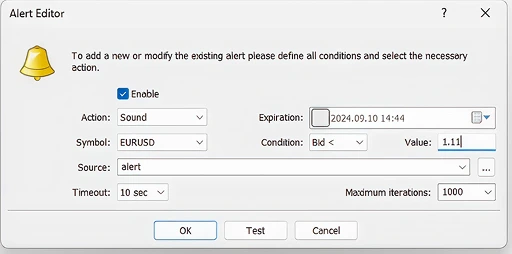
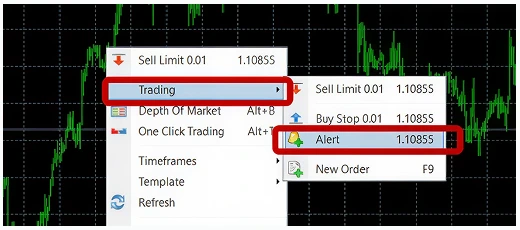
- You can also set alerts directly on a price chart, to notify you when it reaches a point.
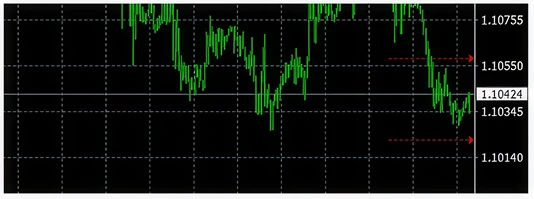
- Alerts will be displayed on the right side of the chart as red arrows. They can also be adjusted manually, just drag the red alert arrow using your mouse.
3) Modify Your Trades
With the Terminal Window (Control + T), you can right click on an open position and select ‘Modify or Delete Order’. Here, you can change your stop loss and take profit levels.
Personalise Your Trading Experience
Tailor your trading experience to suit your preferences by taking advantage of MetaTrader 4’s wide range of indicators and customisation options. Here’s how you can change the look and feel of MT4 to your liking.
Customise Your Charts
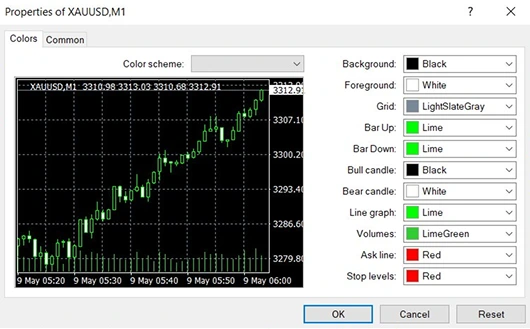
1) Navigate to Properties
Right click a chart and select ‘Properties’ (F8).
2) Adjust the colour and style
Change the appearance of different elements, from the background colours, grids, and chart types such as bars or candlesticks to suit your analysis needs.
3) Save the chart template
Once you’re happy with the look of your chart, you can right click on the chart, select ‘Template’ and save it, so that you can quickly apply the same settings to other charts.
The template will save not just the chart’s appearance, but also any indicators, lines, or other objects drawn on it.
4) Enable One-Click Trading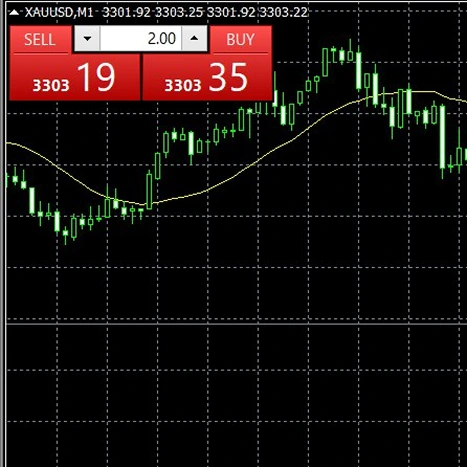
Click on the arrow on the respective charts to show the one-click, or use the short-cut Alt + T. This function saves time when placing trades. It allows you to quickly enter the market with a single button press directly from the chart.
Customise Your Workspace in MetaTrader 4
Hide or Show Symbols
On the Market Watch (Control + M) window, right click and select ‘Symbols’ (Control + U) to open the symbols menu. You can then hide or show any symbols you no longer need to declutter the Market Watch window.
2. Adjust the Market Watch Columns
You can select whether to show the Spread, High/Low, Time, Auto Arrange, or Grid in the window.
3. Set Navigator Hotkeys
You can also set different hotkeys for the items in the Navigator Window (Control + N). Right click on any indicator in the list and select ‘Set Hotkey’ to quickly access your most frequently used indicators and tools.
Troubleshooting Common Windows Login Issues
If you encounter difficulties after your metatrader 4 download for pc, it is usually due to a minor connectivity or security setting. If you see a ‘No Connection’ message, first check your internet stability. If your connection is fine, try right-clicking the connection bars in the bottom right and selecting ‘Rescan Servers.’
In some cases, Windows Firewall or third-party antivirus software may block the platform’s access to our servers. Ensuring that MT4 is listed as an ‘Allowed App’ in your security settings usually resolves this. If you are still seeing an ‘Old Version’ error, simply download the latest installer from the TMGM portal to overwrite your current files with the most recent update.