


Installation: Getting Started with MetaTrader 5
Step 1: Check Your PC, Desktop And Laptop System Requirements
Before you begin the mt5 download, take a quick moment to ensure your computer is ready. While MetaTrader 5 is lightweight, having the recommended specifications ensures your charts won't lag during fast-moving market news.
Component | Minimum Requirements | Recommended for Pro Trading |
Operating System | Windows 7 (64-bit) | Windows 10 or 11 (64-bit) |
Processor (CPU) | Intel Core i3 / AMD Ryzen 3 | Intel Core i5 / AMD Ryzen 5 (or better) |
RAM (Memory) | 4 GB | 8 GB or higher |
Storage | 500 MB Free Space | SSD Hard Drive (Faster Load Times) |
Screen Resolution | 1280 x 720 | 1920 x 1080 (Full HD) or Multi-Monitor |
Pro Tip: Always plug your laptop into a power source while trading. Many laptops automatically switch to "Power Saver Mode" when on battery, which can slow down MT5 and cause "slippage" (entering a trade too late) during volatile market moves.
Step 2: Sign-up and create your TMGM Account
To begin, you will need to create a TMGM account. This process is quick and secure. Provide your basic details and verify your identity. When signing up, remember to choose MetaTrader 5 as your preferred trading platform and select your desired leverage. Your MT5 account will then be linked with your TMGM account.
Once completed, you will have access to TMGM’s trading instruments and features. If you run into any issues, do not hesitate to contact TMGM’s dedicated customer support team for assistance.
Sign Up and Get Started or Log-in to your existing TMGM account.
Step 3: Download MetaTrader 5
Log-in to the TMGM portal and head over to the Downloads section. Here, you can select and download the relevant MetaTrader 5 client for your operating system. For this guide, we will focus on the Windows version, but the process is similar for macOS (Apple) users.
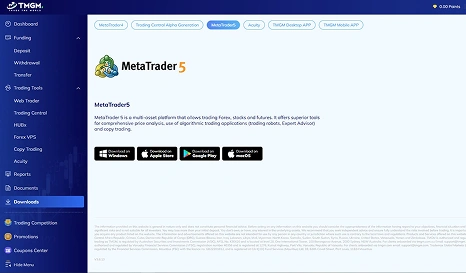
Step 4: Install the TMGM MetaTrader 5 Client
After downloading MetaTrader 5, look for the executable file in the Downloads folder on your PC and double-click it to start the installation. Follow the on-screen instructions, and within a few minutes, MetaTrader 5 will be installed on your desktop and ready to launch 🚀.
Navigating the MetaTrader 5 Interface
MetaTrader 5 offers a clean and intuitive interface designed by traders, for traders, to help you quickly access the tools you need. If you are already familiar with MetaTrader 4, you will find that the layout will similar on desktops and laptops, with some additional features and improvements. Follow these next steps to get started!
Step 1: Sign-in to your MT5 Trading Account
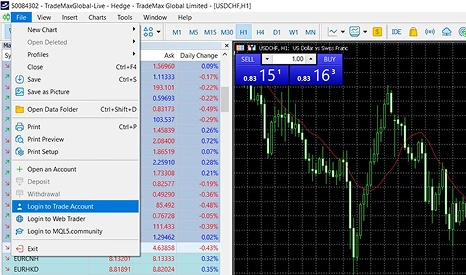
Launch MetaTrader 5 and navigate to the File menu. Select Login to Trade Account and enter your Login Details (provided when you sign up through TMGM). Choose whether to login to a live server or the demo server.
Step 2: Key Sections of the MT5 Interface
Some of the essential components of the MT5 interface which you should be familiar with on your laptop are as follows:
1. Market Watch (Control + M):
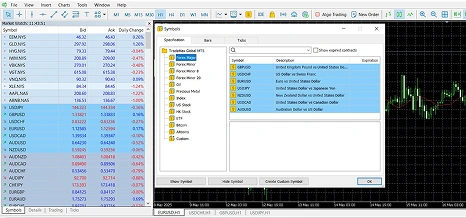
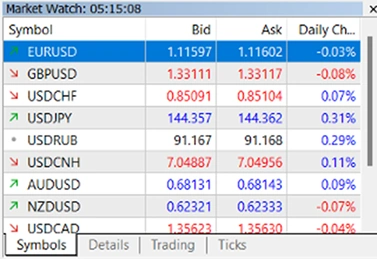
The Market Watch window displays the instruments available for trading along with their bid and ask prices. Right-click on any instrument to place orders, view detailed specifications, or open charts. To explore more trading instruments, use the Symbols window (Ctrl + U) to view and add additional assets to the Market Watch.
2. Navigator (Control + N):
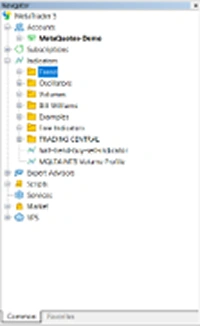
Use this window to manage CFD trading accounts, indicators, scripts, and Expert Advisors (EAs). You can mark commonly used tools and indicators as Favorites for quick access.
3. Chart Window(s)
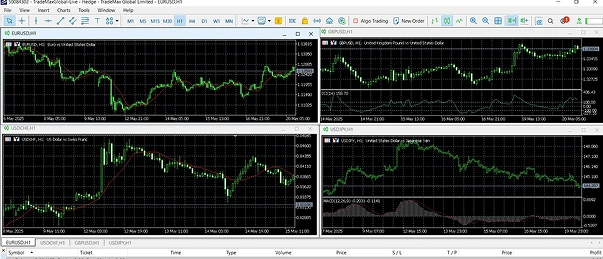
Display real-time forex charts for any financial instrument. MT5 allows for a greater variety of chart types, and you can analyze the market using more advanced technical indicators and time frames.
MetaTrader 5 comes equipped with 21 different timeframes. This feature allows you to switch between short-term and long-term views of price action. This is particularly useful for traders who want to combine short-term intraday strategies with longer-term trend analysis.
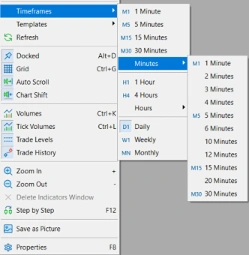
TMGM MT5 Tip:
For traders with multiple display monitors, MT5 can also be used seamlessly across multiple displays! You can detach charts from the main MT5 window by right-clicking on a chart window and selecting Detach.
This can be particularly useful for optimizing your overall workspace and desktop view, while spreading out the charts across different screens, allowing you to multitask and keep track of even more assets at once. Display up to 100 charts simultaneously with MT5 on TMGM!
4. Toolbox and Calendar (Control + T)
The toolbox window, situated at the bottom by default, gives you an overview of your trades at a glance. You can view and manage open trades, account history, alerts, and market news. The Toolbox replaces the Terminal in MT4 and offers more detailed insights than its predecessor.

MetaTrader 5 also has a built-in Economic Calendar that allows users to keep track of major events and announcements that could impact markets on their PCs. It can be accessed in the Calendar tab at the bottom of the toolbox. By closely monitoring the Economic Calendar, you can stay up-to-date and plan your trades around key events.

5. Depth of Market (Alt + B)
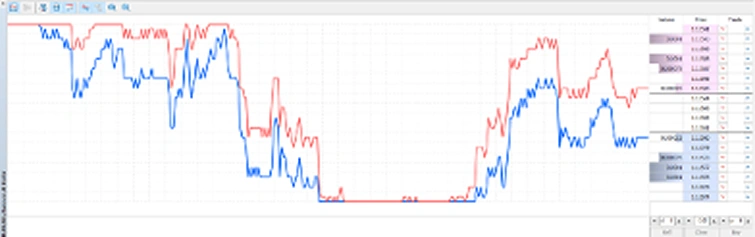
Located within the View menu, the Depth of Market is one of MT5’s powerful features. It provides a view of liquidity at different price levels, allowing you to analyze market sentiment more effectively.
6. Strategy Tester (Control + R)
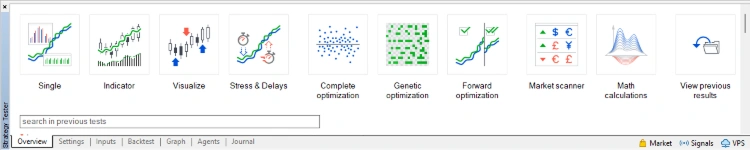
Assess and optimize trading strategies using historical data. MT5’s Strategy Tester allows multi-currency backtesting, so that you can assess the performance of your Expert Advisors (EAs) across various instruments simultaneously.
Making Trades within MetaTrader 5
Now that you have a deeper understanding of how to use the tools within MT5, here is how you can setup trades using MT5 either on your PC, desktop or laptop.
Step 1: Choose Your Trading Instrument
From the Market Watch window, select the asset you want to trade. In this example, we will simulate a trade using the EURUSD Forex pair.
Step 2: Place a New Order
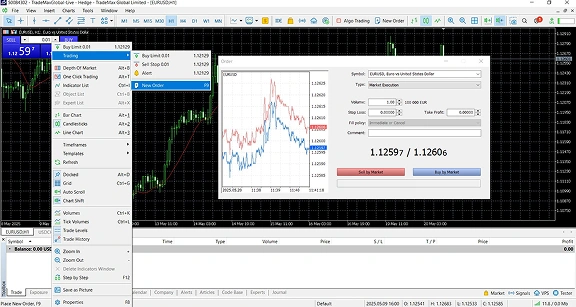
Right-click on the instrument and choose New Order (or press F9). You can also use the "New Order" button in the Tools menu.
Step 3: Set Trade Parameters
Symbol: Select from the shortlisted symbols to trade.
Type: Select between Instant Execution and Pending Order trade types.
Volume: Set the number of lots.
Stop Loss: Define a price to automatically close the trade if the market moves against you.
Take Profit: Set a target price to lock in your profits automatically, measured in pips.
Comment: An optional text comment for the order. Maximum comment length is 31 characters. The comment will appear in the list of open positions and the order history.
Step 4: Consider the Type of Trade
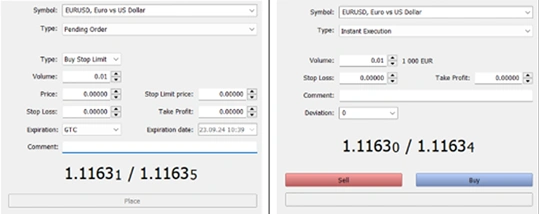
Instant Execution:
Select this if you want to buy or sell immediately at the current market price. This is the standard choice for most beginner trades.
Pending Orders:
Select this if you want to set a specific price for the trade to open automatically in the future.
Step 5: Place the Order
When ready, you can click Place to carry out the order. Congratulations! Your first order has been successfully placed. Now comes the next step: closely watching and adjusting your positions if needed, according to your CFD trading strategy.
TMGM MT5 Tip:
MetaTrader 5 comes equipped with One-Click Trading (Alt + T).
This special function saves time when placing trades. It allows you to quickly enter the market with a single button press directly from the chart. This feature is ideal for traders looking to respond quickly to market movements, especially during periods of high volatility.
Understanding Pending Orders on MT5 for PC
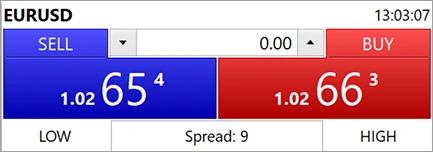
One of the main reasons traders download MT5 is for the precision of its Pending Orders. Unlike 'Instant Execution', which buys immediately, these orders tell MT5 for PC to wait until the price hits a specific level you choose.
To use them correctly, you simply need to know if you want a better price (Limit) or if you want to follow the trend (Stop).
Limit Orders
Use these when you want to enter the market at a price that is better than the current one.
Buy Limit: You want to buy, but the current price is too high.
Action: Set the price BELOW the current market price.
Sell Limit: You want to sell, but you want a higher profit.
Action: Set the price ABOVE the current market price.
Stop Orders
Use these when you want to confirm the market is moving in your direction before entering.
Buy Stop: You want to buy, but only if the price keeps rising.
Action: Set the price ABOVE the current market price.
Sell Stop: You want to sell, but only if the price keeps falling.
Action: Set the price BELOW the current market price.
Which Order to Choose?
| Your Goal | Where is the Price? | Order Type to Select |
Buy Lower | Price is Below current market | Buy Limit |
Sell Higher | Price is Above current market | Sell Limit |
Buy Higher | Price is Above current market | Buy Stop |
Sell Lower | Price is Below current market | Sell Stop |
Setting an Expiration Date
When placing a pending order, you can tell MT5 when to cancel the order if it hasn’t been triggered yet. This prevents “ghost orders” from activating weeks later when market conditions have changed.
GTC (Good ‘till Cancelled – An order that will last up until it is cancelled manually)
Today (If unfulfilled, the order will be cancelled at the end of the day)
Specified (If unfulfilled, the order will be cancelled at a specified date and time)
Specified Day (If unfulfilled, the order will be cancelled at a specified date)
How to Monitor and Modify Your Positions
1) View Open Positions and Track Orders
Within the Toolbox (Control + T), you can see all your open positions and pending orders. Each position will display the key details, such as symbol, time, type, size/volume, profit/loss, and the current price.
Use the Market Watch (Control + M) window and Charts to keep an eye on real-time prices and market movements.
2) Set Alerts and Notifications
- In the Toolbox (Control + T), go to the ‘Alerts’ tab.
- Right click and select ‘Create’ (Insert), to set a custom price alert.
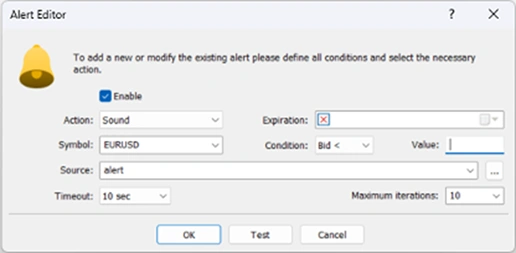
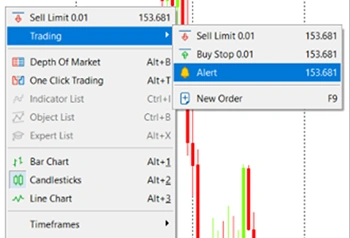
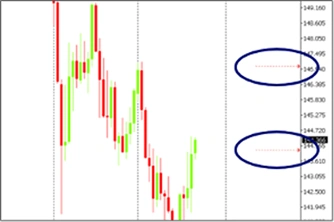
- You can also set alerts directly onto a price chart, which will display as an arrow on the right. Simply right click anywhere in the chart window, select Trading, and select Alert.
- They can also be adjusted manually, simply left click and hold the alert arrow using your mouse to drag it around.
3) Modify Your Trades
Right-click on an open trade in the Toolbox and choose Modify or Delete Order to adjust stop-loss or take-profit levels. You can also close the position from this window.
Customization: Tailoring MT5 to Your Trading Preferences
Make MT5 yours by adjusting its appearance and properties to suit your trading style better. MT5 offers a wide array of customization options, allowing you to create a unique layout.
Customizing Charts
1) Right click a chart and select ‘Properties’ (F8).
2) Adjust the colour and style:
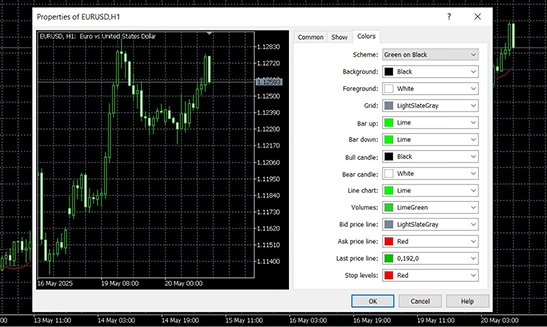
Here, you can change the chart’s appearance by adjusting the background color, grid visibility, and chart type. Choose from bar charts, candlestick charts, or line charts based on your preference.
You can also toggle between showing or hiding the Ask line, Open-High-Low-Close (OHLC) data, or the grid for a clearer view of price movements.
3) Save the chart template:
You can save this layout as a template on your desktop once you configure your chart with the preferred settings.
Right-click on the chart, select template> Save template, and name your template for easy access later. This lets you quickly apply the same chart settings to other instruments without adjusting everything from scratch.
Customizing Your MetaTrader 5 Workspace
1) Show/Hide Instruments:
Use the Market Watch window (shortcut Control + M) to manage which instruments are displayed on your laptop.
To show or hide instruments, open the Symbols window by pressing Control + U. From here, you can browse asset categories and double-click on them to add or remove them from the Market Watch list.
Symbols that are shown on the Market Watch list will have the dollar sign on the left colored yellow.
2) Adjust Market Watch Columns:
You can customize the columns displayed in the Market Watch window to include additional information such as spread, high/low prices, or time.
3) Set Hotkeys on Your Desktop for Quick Access:
MT5 allows you to set hotkeys to streamline your trading experience. The Navigator window will enable you to customize shortcuts for indicators, drawing tools, and other frequently used functions.
With these customization tools at your fingertips, you can now tailor your overall MT5 workspace to suit your unique trading style. By creating a trading environment that works for you, you can stay focused on what matters most and make informed decisions. Trade smarter and more efficiently with MetaTrader 5, available through TMGM.